
Every great digital product starts with a prototype. Before a single line of code is written, designers are busy sketching flows, mapping interactions, and stress-testing ideas that may or may not survive contact with real users. The prototype is where creative intuition meets practical reality—and the tool you use to build it shapes nearly everything that follows.
Choosing the right prototyping tool is one of the most consequential decisions in the design process. The right choice accelerates iteration, improves stakeholder communication, and ultimately leads to better user interface design. The wrong one creates friction at every turn. Yet with dozens of tools on the market—each claiming to be the fastest, the most intuitive, the most collaborative—designers are often left more confused than when they started.
This guide cuts through the noise. Whether you’re building complex interactive flows or rapid low-fidelity wireframes, here’s what you need to know about the best prototyping tools for designers, how they compare, and how to choose the right one for your workflow.
What Is Prototyping in UI/UX Design?
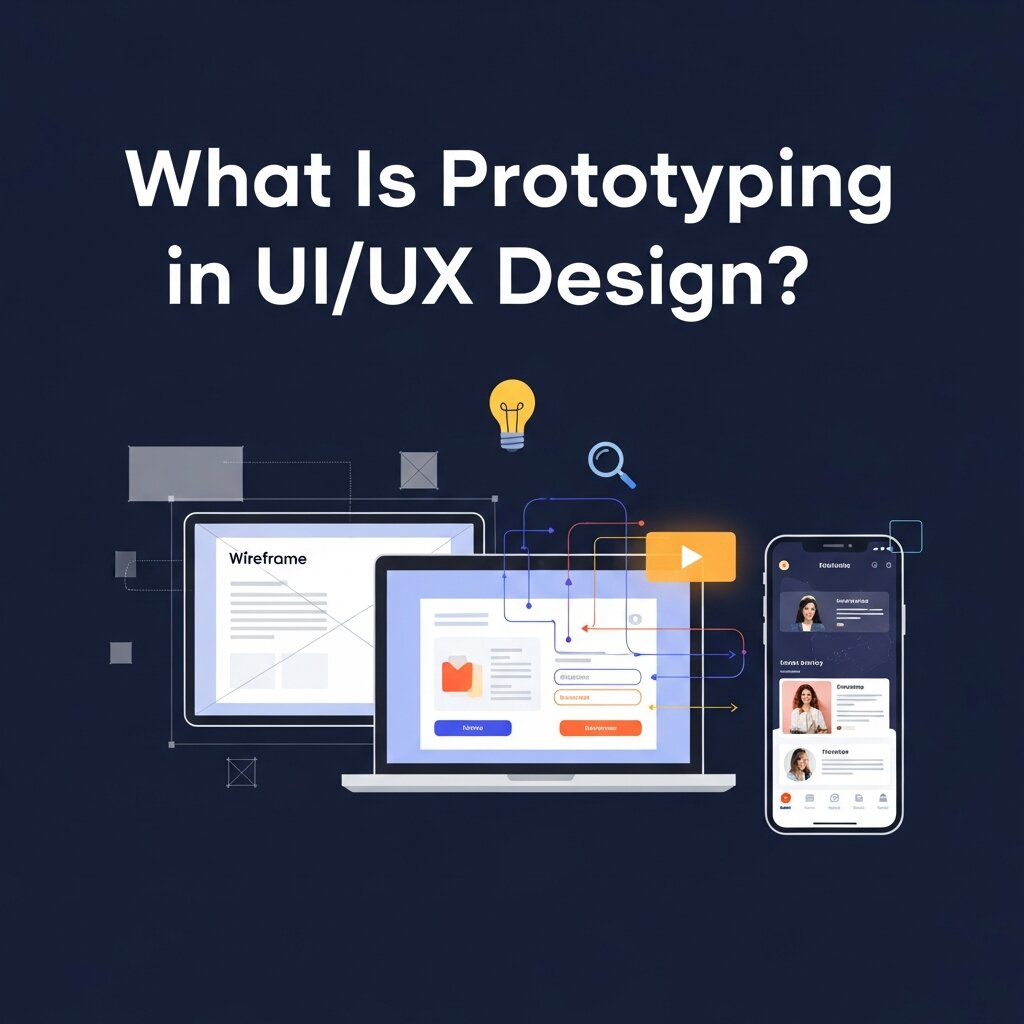
A prototype is a simulation of a final product. It can be as rough as a hand-drawn sketch or as polished as a pixel-perfect, interactive mockup that closely mirrors the finished experience. In the context of user interface design, prototypes typically fall into one of three categories:
- Low-fidelity (lo-fi): Basic wireframes that map out layout and structure without visual detail. Fast to produce, easy to revise.
- Mid-fidelity: More structured layouts that introduce content hierarchy and basic interaction patterns.
- High-fidelity (hi-fi): Detailed, interactive prototypes that reflect the final digital visual design—complete with typography, color, and micro-interactions.
Each fidelity level serves a different purpose. Lo-fi prototypes are ideal in early discovery phases, where ideas are still fluid. Hi-fi prototypes shine in usability testing and stakeholder presentations, where the goal is to simulate the real product experience as closely as possible.
The right prototyping tool should support whichever fidelity you’re working at—without forcing you to start over when you need to move up the scale.
Why the Right Prototyping Tool Matters
 Speed and quality don’t have to trade off. With the right tool, designers can move from concept to testable prototype in hours, not days. That speed compounds over a project’s lifecycle—more iterations, faster feedback, fewer expensive mistakes in development.
Beyond speed, the best prototyping tools integrate seamlessly into broader design workflows. They connect digital branding design assets, support design systems, and make handoff to developers as clean as possible. In collaborative environments, they also allow product managers, developers, and stakeholders to interact with designs in real time—reducing miscommunication before it becomes a problem.
Poor tool choices tend to surface mid-project. A tool that lacks responsive design support becomes a problem when the mobile version differs from the desktop. A platform with limited collaboration features creates bottlenecks the moment a second designer joins the team. Switching tools mid-project is painful and costly. Choosing wisely at the outset pays dividends.
The Best Prototyping Tools for Designers in 2026
Figma: The Collaborative Standard
Figma has become the dominant prototyping and design tool for UI/UX teams, and for good reason. It runs entirely in the browser, which means no version conflicts, no file syncing issues, and real-time collaboration baked in at the core. Multiple designers can work on the same file simultaneously—a capability that transformed how distributed design teams operate.
For prototyping specifically, Figma offers an intuitive interaction builder where you can link frames, define transition animations, and simulate complex user flows without writing code. Its component library system supports large-scale digital visual design projects, enabling teams to maintain consistency across hundreds of screens.
Best for: Teams of all sizes who prioritize collaboration and want an all-in-one design and prototyping tool.
Limitations: Advanced animations and complex micro-interactions can feel constrained compared to dedicated motion tools. Heavy files with many components can slow down performance in the browser.
Adobe XD: The Creative Suite Companion
 Adobe XD was built with creative professionals in mind—particularly those already embedded in the Adobe ecosystem. The integration with Photoshop, Illustrator, and Adobe Fonts makes it a natural extension for designers working across digital branding design projects where asset management is critical.
XD’s prototyping features include auto-animate, which transitions smoothly between artboard states to simulate micro-interactions. Its repeat grid feature is particularly handy for quickly populating list-based UI patterns like feeds or card decks. Collaboration has improved significantly since XD introduced cloud sharing and co-editing features.
Best for: Designers working within the Adobe Creative Cloud ecosystem or managing brand-heavy projects with rich visual assets.
Limitations: Adobe XD’s development has slowed in recent years, and the platform’s future roadmap has raised questions in the design community.
InVision: Built for Feedback and Handoff
InVision occupies a unique niche. Rather than offering robust design capabilities, it focuses on turning static designs into clickable prototypes and facilitating structured feedback. Designers import screens from tools like Sketch or Figma, link them together into flows, and share them with stakeholders for review.
Its Inspect panel gives developers precise measurements, assets, and code snippets from finalized designs—making it particularly strong for handoff workflows. InVision Freehand also provides a collaborative whiteboarding space useful in early ideation sessions.
Best for: Teams that design in Sketch and want a dedicated tool for prototyping, stakeholder review, and developer handoff.
Limitations: InVision doesn’t offer native design capabilities, so it requires pairing with another design tool. Its ecosystem has also seen consolidation, with some products being phased out.
Sketch: The macOS Mainstay
Sketch was the dominant UI design tool before Figma arrived, and it remains a strong choice—particularly for macOS users who value a desktop-native experience. Its plugin ecosystem is extensive, covering everything from accessibility checks to animation previews.
Sketch’s prototyping features have improved steadily, supporting linked artboards, basic animations, and interactive overlays. Its symbols and shared styles system supports scalable user interface design, making it well-suited for teams managing large design systems.
Best for: macOS-first design teams who prefer a desktop app and rely heavily on a customized plugin workflow.
Limitations: No Windows support. Real-time collaboration is available via Sketch for Teams, but lags behind Figma’s seamless multi-user experience.
ProtoPie: The Interaction Specialist
When advanced interactivity is the priority, ProtoPie stands apart. Designed specifically for high-fidelity prototyping, ProtoPie allows designers to build complex interactions without code—using a logic-based system of triggers, responses, and conditions.
Scroll behaviors, sensor inputs, multi-touch gestures, and conditional states are all native to ProtoPie. The tool also supports device mirroring, so you can test your prototype on the actual target device rather than guessing how it will feel. For designers working on interaction-heavy products—onboarding flows, animation-rich interfaces, gesture-driven mobile apps—ProtoPie delivers capabilities that general-purpose tools simply don’t match.
Best for: Interaction designers building high-fidelity prototypes that require advanced animations, complex logic, or device-specific testing.
Limitations: Steeper learning curve than general tools. Not ideal for quick wireframing or early-stage design exploration.
Axure RP: The Enterprise Workhorse
Axure RP has been around longer than most tools on this list, and its core strength remains unchanged: it handles highly complex, logic-driven prototypes that go far beyond standard UI flows. Conditional logic, dynamic content, data-driven states, and multi-page sitemaps are all supported natively.
Enterprise product teams—particularly in SaaS, healthcare, and fintech—often gravitate toward Axure when they need prototypes that double as functional specifications. Its documentation features allow designers to annotate interactions in detail, bridging the gap between design and development.
Best for: Enterprise design teams or UX researchers who need complex, specification-ready prototypes.
Limitations: The interface is dated, the learning curve is steep, and it’s overkill for straightforward UI projects.
How to Choose the Right Prototyping Tool for Your Workflow
 No single tool suits every project or team. The decision depends on several intersecting factors.
Team size and collaboration needs: If you’re working with a distributed team or cross-functional stakeholders who need to comment directly on designs, Figma’s real-time collaboration is difficult to beat. Smaller solo workflows may find lighter tools more efficient.
Fidelity requirements: For rapid early-stage exploration, a simpler tool or even a whiteboarding app is often more appropriate than a feature-heavy platform. Save hi-fi tools for when the concept has been validated.
Integration with your existing stack: Consider how the tool connects with your design system, asset libraries, and developer handoff workflow. Switching tools mid-project to accommodate a new integration is rarely worth the disruption.
Type of interactions you’re designing: Standard screen-to-screen navigation can be handled by almost any modern tool. Complex micro-interactions, physics-based animations, or conditional states require something purpose-built—ProtoPie or Axure, depending on the context.
Learning curve vs. output quality: Some tools offer incredible output quality but take weeks to master. Factor in your project timeline when evaluating options. A tool that produces 80% of the quality in 20% of the time may serve a fast-moving product team better than a technically superior platform that slows the team down.
Common Prototyping Mistakes Designers Should Avoid
Even with the best prototyping tools, poor design practices can limit the effectiveness of a prototype. One of the most common mistakes is adding too much detail too early. Spending excessive time perfecting colors, typography, and animations before validating the user flow can slow the design process and make revisions more difficult. Instead, designers should begin with simple wireframes, gather feedback early, and gradually increase fidelity as ideas are validated.
Another frequent issue is designing prototypes without real user testing. A prototype may appear flawless to the design team but still confuse end users. Conducting usability tests with representative users helps uncover navigation issues, unclear interactions, and accessibility challenges before development begins. By treating prototypes as learning tools rather than finished products, designers can reduce costly revisions, improve collaboration with stakeholders, and create user-centered experiences that are easier to develop and maintain.
Prototyping Is a Practice, Not Just a Step
The best designers treat prototyping as an ongoing practice rather than a phase that happens once before development. Prototypes get tested, revised, retested, and refined—sometimes dozens of times before the product ships. That iterative cycle is where design thinking actually happens, where assumptions get challenged, and where great user interface design is born.
Investing time in learning your prototyping tool deeply pays off. The faster you can translate an idea into something testable, the more feedback loops you complete, and the closer the final product gets to what users actually need.


