
There’s a reason Adobe Illustrator has remained the gold standard for graphic design since 1987. While design tools have multiplied over the decades, Illustrator vector design continues to sit at the center of professional creative workflows—for print studios, digital agencies, brand designers, and independent creatives alike.
But what exactly makes vector design so powerful? And why does Illustrator, in particular, keep its place at the top of the toolkit even as newer platforms like Figma UI design and Photoshop digital design continue to evolve?
This post breaks it all down. You’ll learn how Illustrator vector design works, why it outperforms raster-based tools in key scenarios, and how it shapes both print and digital visual design from the ground up.
What Is Illustrator Vector Design, and Why Does It Matter?
At its core, vector design is the art of creating graphics using mathematical paths—points, lines, curves, and shapes—rather than pixels. The result is artwork that scales infinitely without losing quality. Zoom in on a pixel-based image and it becomes blurry. Zoom in on an Illustrator vector file and the edges remain razor-sharp.
This distinction matters enormously in professional design. A logo designed in Illustrator can be printed on a business card or blown up on a billboard—same file, same quality, zero compromise. For print designers especially, that flexibility is non-negotiable.
Adobe Illustrator gives designers the tools to build complex, scalable artwork with precision. From custom typography and geometric patterns to intricate illustrations and packaging layouts, the platform handles it all with a level of control that raster tools simply can’t replicate.
How Vector Design Enhances Print Creativity
Why print designers rely on scalable vector files
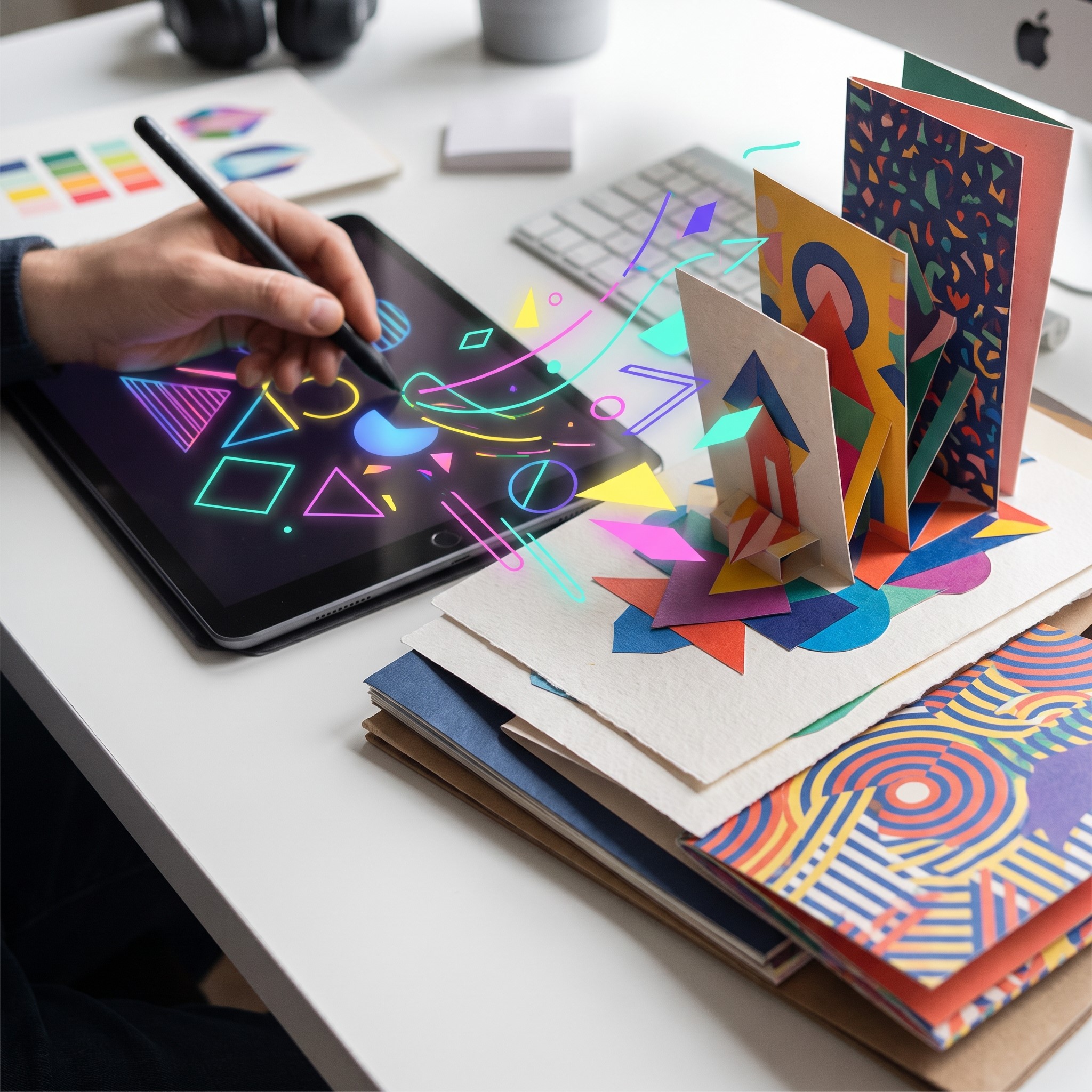
Print design demands accuracy. Whether you’re producing packaging for a product, designing a magazine spread, or preparing signage for large-format printing, your artwork needs to hold up at any size and under any output condition.
Illustrator vector design is built for exactly this. Files created in Illustrator use vectors by default, which means artwork scales cleanly to any dimension without quality loss. More importantly, Illustrator supports CMYK color mode—the color model used by commercial printers—allowing designers to preview and adjust colors for accurate print output.
Raster tools like Photoshop digital design are excellent for photo manipulation and texture-heavy work, but they’re not the right fit for scalable logo systems or line-based artwork intended for print. Illustrator fills that gap.
Precision tools that professional print work demands
Illustrator’s Pen Tool is arguably the most powerful drawing tool in any design software. It allows designers to trace complex shapes, draw custom letterforms, and create precisely controlled paths. Combined with features like Smart Guides, alignment tools, and the Pathfinder panel, Illustrator makes it possible to build print-ready artwork with the kind of accuracy that production environments require.
Typography control is another area where Illustrator shines in print workflows. Designers can manipulate type at a granular level—adjusting kerning, leading, and tracking—and convert text to outlines to ensure fonts display correctly regardless of whether the recipient has them installed.
For packaging designers, Illustrator’s ability to work with artboards, dielines, and bleed settings makes it a natural fit for production-ready files.
How Illustrator Vector Design Powers Digital Visual Design
Building scalable assets for screens and interfaces
Digital visual design presents its own set of challenges. Screens vary dramatically in size and resolution—from small mobile displays to large 4K monitors—and digital assets need to perform well across all of them.
SVG (Scalable Vector Graphics) files, which Illustrator exports natively, are the format of choice for web and UI design precisely because they remain sharp on any screen resolution. Icons, illustrations, and interface elements built in Illustrator can be exported as SVGs and implemented directly in web or app environments without quality loss.
This is where Illustrator vector design intersects with the broader digital design ecosystem. Many designers create base assets in Illustrator, then bring them into tools like Figma UI design for prototyping and collaboration. Illustrator handles the complex illustration work; Figma handles the interactive layout and handoff. The two tools complement each other rather than compete.
Crafting brand identities that work everywhere
Brand design is one of the most demanding applications of digital visual design, because brand assets need to work across every medium—websites, social media, email, presentations, merchandise, and physical spaces.
Illustrator vector design is the foundation of almost every professional brand identity system. Logos, icon sets, and brand pattern libraries are built in Illustrator because the file format guarantees consistency across every application. A brand color that looks correct in an Illustrator file will remain consistent whether it ends up on a social media graphic, an email header, or a printed business card.
The ability to create reusable, scalable assets also speeds up brand application. Once a designer builds a vector logo system in Illustrator—complete with variations for light backgrounds, dark backgrounds, and single-color use—those assets work across every touchpoint without needing to be recreated.
Illustrator vs. Other Design Tools: Where Each Fits Best
How does Illustrator vector design compare to Photoshop digital design?
Photoshop and Illustrator are both Adobe products, and many designers use them side by side. But they serve fundamentally different purposes.
Photoshop digital design is optimized for raster images—photographs, textures, digital paintings, and compositing work. When a project involves heavy photo editing, realistic lighting effects, or blending photographic elements, Photoshop is the better tool.
Illustrator vector design excels when the work requires clean, scalable line art, precise typography, or artwork that needs to work at multiple sizes. For logos, iconography, infographics, and layout work, Illustrator is the stronger choice.
The most effective workflows often use both. A designer might edit a product photograph in Photoshop, then place it within an Illustrator layout for a brochure or ad campaign. Each tool plays to its strengths.
How does Illustrator differ from Figma UI design?
Figma UI design has transformed the way teams collaborate on digital products. Built for interface design and prototyping, Figma allows multiple designers to work on the same file simultaneously, making it ideal for product teams working on apps and websites.
Illustrator, by contrast, is a single-user creative tool optimized for complex illustration and print-ready artwork. It offers far more sophisticated drawing tools, better typography controls, and superior support for print production formats.
Figma UI design works best when the goal is interface layout, user flow design, or collaborative handoff with developers. Illustrator vector design works best when creating complex illustrations, detailed brand assets, or artwork destined for both print and digital use.
Many professional studios run both tools in parallel: Illustrator for asset creation, Figma for layout and collaboration.
Practical Applications of Illustrator Vector Design
 The range of work that Illustrator handles spans nearly every corner of the creative industry:
- Brand identity design: Logos, wordmarks, icon systems, and brand guidelines built for scalability across every medium.
- Editorial and publication design: Infographics, custom illustrations, and layout elements for magazines, reports, and books.
- Packaging design: Structural dielines, label artwork, and production-ready files for physical products.
- Motion graphics: Illustrator files serve as the starting point for animations in Adobe After Effects, where vector shapes can be rigged and animated.
- Web and app assets: SVG icons, illustrated UI elements, and custom background graphics for digital platforms.
- Merchandise and apparel: Screen-printing and embroidery artwork requires clean, scalable vectors—Illustrator is the industry standard.
Each of these applications benefits from the same core strength: artwork that maintains quality regardless of how it’s scaled or where it ends up.
What Makes a Strong Illustrator Vector Design Workflow?
Good Illustrator work goes beyond knowing the tools—it requires a structured approach that keeps files clean, organized, and production-ready.
Strong workflows typically involve organizing artwork across clearly labeled layers, using symbols and reusable components to maintain consistency, and naming artboards logically when working on multi-page projects. Color swatches should be managed carefully to ensure brand accuracy, and files should be packaged correctly before handoff to include linked assets and embedded fonts.
For designers working across print and digital outputs, it’s worth building assets with both in mind from the start. That means working in RGB for flexibility (converting to CMYK at the production stage if needed), keeping text editable for as long as possible, and exporting in multiple formats—PDF for print, SVG or PNG for digital—from the same master file.
Optimizing Illustrator Vector Files for Maximum Performance
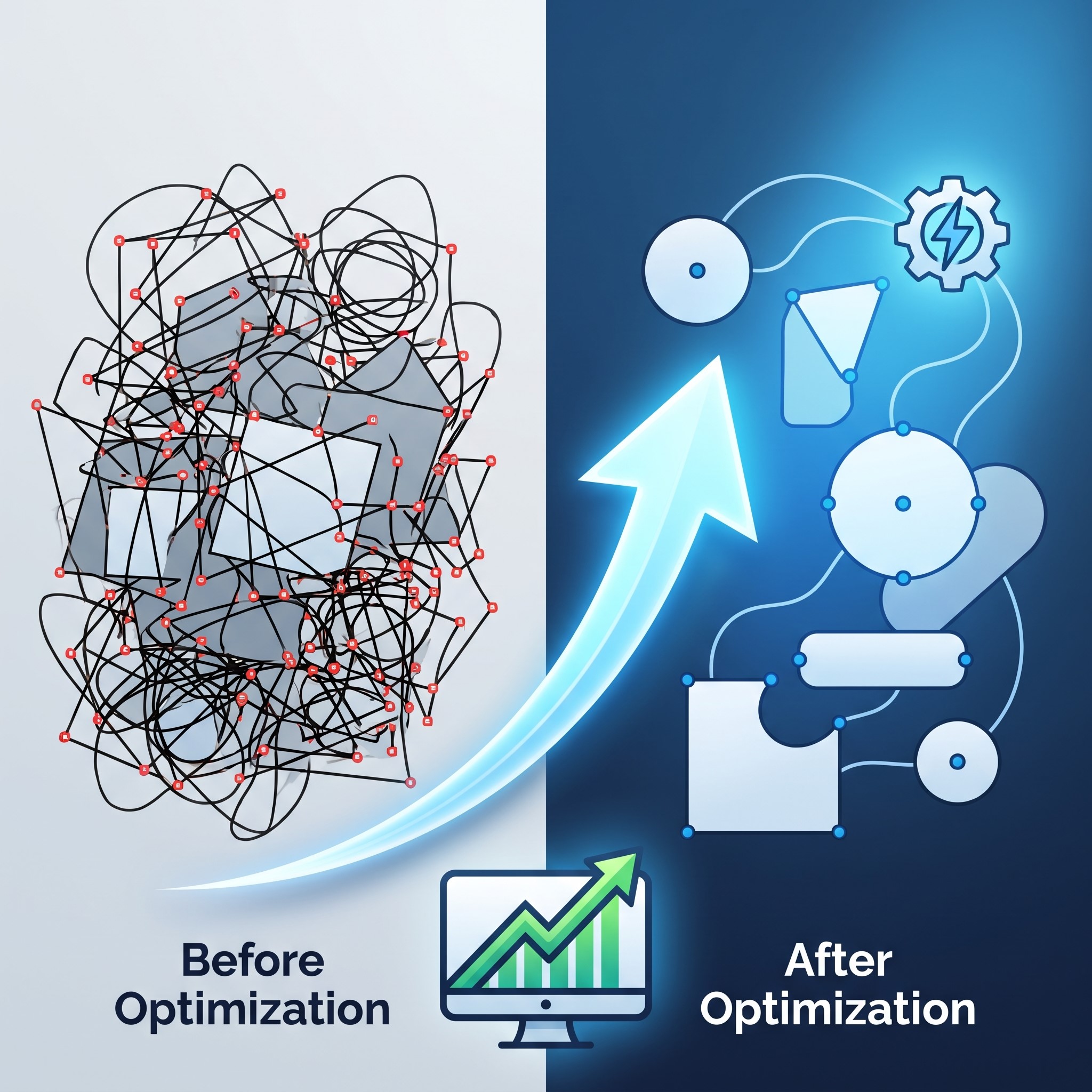 Creating beautiful vector artwork is only part of the design process—optimizing your files is equally important. Well-organized Illustrator documents improve editing efficiency, reduce file size, and ensure smooth collaboration with clients, printers, and development teams. Designers should remove unnecessary anchor points, delete unused swatches and symbols, group related elements, and use clearly labeled layers for better organization.
Simplifying complex paths also improves performance, especially in large illustrations or branding projects. Before exporting, verify color settings, convert fonts to outlines when required, and choose the appropriate file format for the final destination. An optimized Illustrator workflow minimizes production errors, speeds up revisions, and ensures vector graphics remain professional, lightweight, and ready for both print and digital applications.
Frequently Asked Questions
1. What is Illustrator vector design?
Illustrator vector design is the process of creating graphics using mathematical paths instead of pixels. This allows artwork to be resized without losing quality, making it ideal for logos, illustrations, icons, packaging, and professional print and digital projects.
2. Why is Adobe Illustrator better for vector graphics than raster-based software?
Adobe Illustrator is specifically built for vector creation, offering advanced drawing tools, precise path editing, scalable artwork, and professional typography controls. Unlike raster software, vector graphics remain sharp and clear at any size without becoming pixelated.
3. What types of projects are best suited for Illustrator vector design?
Illustrator is perfect for logo design, brand identity systems, business cards, brochures, packaging, infographics, icons, web graphics, apparel designs, signage, and custom illustrations that require scalability and high-quality output.
4. Can Illustrator vector files be used for both print and digital media?
Yes. Illustrator vector files are highly versatile and can be exported in formats such as AI, PDF, EPS, SVG, PNG, and JPG. This makes them suitable for commercial printing, websites, mobile apps, social media, presentations, and marketing materials.
5. What is the difference between Adobe Illustrator and Adobe Photoshop?
Illustrator is designed for vector graphics that scale without quality loss, while Photoshop focuses on pixel-based image editing and photo manipulation. Many professional designers use Illustrator for illustrations and branding, then Photoshop for image enhancement and visual effects.
6. How does Illustrator work with Figma in modern design workflows?
Many designers create icons, illustrations, and branding assets in Adobe Illustrator before importing them into Figma for UI/UX design, prototyping, and team collaboration. Together, the two applications provide a complete workflow for digital product design.
7. Is Adobe Illustrator suitable for beginners?
Yes. Although Illustrator has a learning curve, beginners can quickly learn essential tools such as the Pen Tool, Shape Builder, Pathfinder, and typography features. Regular practice and structured tutorials help users build professional-level vector design skills.
8. What file formats can Adobe Illustrator export?
Adobe Illustrator supports numerous export formats, including AI, PDF, EPS, SVG, PNG, JPG, and TIFF. These formats allow designers to prepare artwork for commercial printing, websites, mobile applications, presentations, and digital marketing campaigns.
9. Why are vector graphics important for branding?
Vector graphics ensure logos and brand assets remain sharp across every application, from business cards and websites to billboards and promotional merchandise. Their scalability and consistency help businesses maintain a professional and recognizable visual identity.
10. How can businesses benefit from professional Illustrator vector design services?
Professional Illustrator vector design services help businesses create scalable, high-quality branding assets that improve visual consistency, strengthen brand recognition, and support both print and digital marketing efforts. Well-designed vector graphics also provide long-term value because they can be reused across multiple platforms without sacrificing quality.
The Lasting Relevance of Vector-Based Design
Trends in digital visual design come and go. New tools enter the market. Platforms rise and fall. But the fundamental advantages of vector design—scalability, precision, and format flexibility—remain constant.
Illustrator vector design has endured not because Adobe has locked designers into a proprietary ecosystem, but because the underlying technology solves a real problem: how do you create artwork that works everywhere, at any size, without compromise?


