
Building a great digital product starts long before a single line of code is written. It starts with design—and more specifically, with the tools you use to bring that design to life. Adobe XD design tools have become a go-to choice for UI/UX designers who need to create responsive, interactive, and visually polished experiences without constantly switching between platforms.
This guide covers everything you need to know about Adobe XD: what it does, why it matters for user interface design, and how its core features help you design everything from a simple landing page to a complex, multi-screen app. Whether you’re new to the platform or looking to unlock more of its capabilities, you’ll come away with a clearer picture of how Adobe XD fits into a modern design workflow.
What Is Adobe XD and Who Is It For?
Adobe XD is a vector-based design and prototyping tool built specifically for user interface design and user experience (UX) design. Released by Adobe in 2016, it was developed to address a growing need in the design industry: a single tool that could handle both the visual design and interactive prototyping stages of a project.
Unlike Photoshop or Illustrator—which were originally built for photo editing and print design respectively—Adobe XD was purpose-built for digital visual design. That focus shows. The interface is clean, the learning curve is manageable, and the feature set is tailored to the realities of designing for screens.
Adobe XD is used by:
- UI/UX designers building web and mobile app interfaces
- Product teams who need to prototype and test interactions before development
- Agencies and freelancers working on digital branding design projects
- Developers who collaborate with designers and need clean, handoff-ready assets
The platform is available on both macOS and Windows, and integrates natively with other Adobe Creative Cloud apps like Photoshop, Illustrator, and After Effects.
How Adobe XD Handles Responsive Design
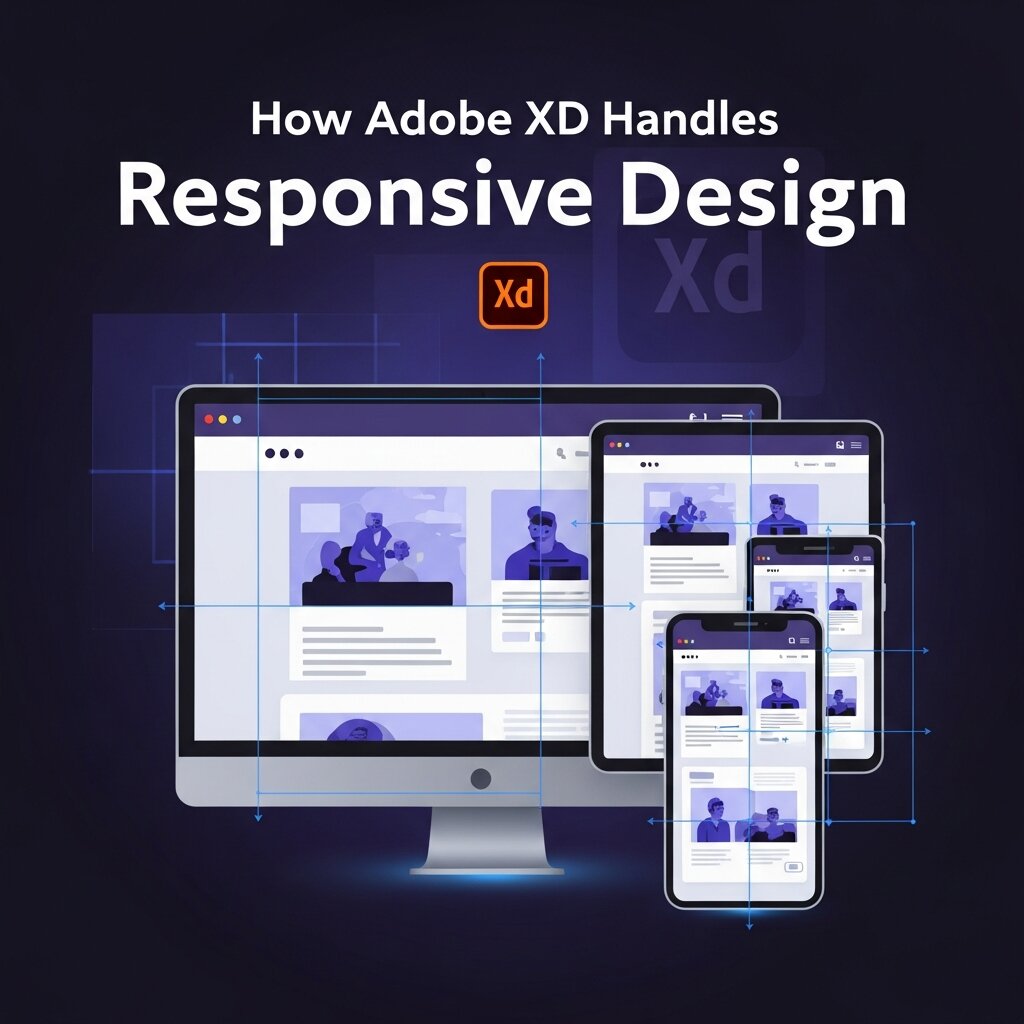 Responsive design is non-negotiable in modern UI work. Users interact with digital products on a huge range of screen sizes—from smartwatches to widescreen monitors—and your designs need to adapt accordingly.
What is Responsive Resize in Adobe XD?
Adobe XD includes a Responsive Resize feature that lets designers adjust the dimensions of a design element or component while preserving the proportional relationships between its parts. When you resize a group of elements, Adobe XD uses constraint-based logic to determine which elements should scale, stretch, or stay fixed in place.
This is especially useful when designing across multiple breakpoints. Rather than manually recreating every screen size from scratch, you can define a layout once and use Responsive Resize to adapt it for tablet, mobile, and desktop views efficiently.
Using Artboards for Multi-Screen Design
Artboards are the foundational canvas in Adobe XD. Each artboard represents a single screen or state within your design, and you can create as many as you need within a single document.
Adobe XD comes with preset artboard sizes for common devices—iPhone, Android, iPad, and various desktop resolutions—so you don’t have to calculate dimensions manually. You can also create custom artboard sizes to match any screen specification your project requires.
Working across multiple artboards in a single file makes it easy to maintain visual consistency. When you update a shared color, font, or component, those changes can propagate across your entire project.
Grids and Guides for Consistent Layouts
Good user interface design depends on structure. Adobe XD supports both square grids and layout grids (column-based), which you can apply directly to individual artboards. Layout grids are particularly useful for web design, where column-based layouts are standard.
You can set the number of columns, gutter width, and margin size, giving you a precise framework that keeps your designs consistent across screen sizes. Guides can also be added manually for additional alignment control.
Interactive Prototyping With Adobe XD
 Designing static screens is only half the job. To truly test and communicate a user experience, you need interactivity—and this is one of the areas where Adobe XD design tools genuinely shine.
How Does Prototyping Work in Adobe XD?
Adobe XD has two modes: Design mode and Prototype mode. You switch between them using the tabs at the top of the interface. In Prototype mode, you can connect artboards using interaction wires, which define what happens when a user clicks, hovers, drags, or swipes on an element.
Each interaction can be customized with:
- Triggers: Tap, drag, hover, key/gamepad, voice, time
- Actions: Transition to another artboard, overlay, scroll to, go back, speak
- Animations: Auto-animate, slide, push, dissolve, and more
- Easing curves: To control the feel and timing of transitions
This level of control means you can create high-fidelity prototypes that closely mimic the real product experience—without writing any code.
Auto-Animate: Making Transitions Feel Real
One of the most powerful features in Adobe XD is Auto-Animate. When you duplicate an artboard and move or transform elements between the two versions, Adobe XD automatically generates a smooth animation between the two states when the prototype is played.
For example, if you want to show a menu expanding or a card flipping, you simply design both states on separate artboards and connect them with an Auto-Animate transition. The result is a realistic, interactive prototype that communicates motion and behavior clearly to both clients and developers.
This feature is particularly valuable in digital visual design projects where communicating micro-interactions and motion design is essential to getting stakeholder sign-off.
Scrollable Prototypes and Fixed Elements
Many interfaces require scrolling—long-form content pages, social feeds, product listings. Adobe XD handles this natively. You can set an artboard height that exceeds the viewport size and enable vertical or horizontal scrolling in the prototype settings.
Fixed elements can be “pinned” so they stay in place while the rest of the content scrolls beneath them. This lets you accurately prototype sticky navigation bars, floating action buttons, or chat widgets—the kind of UI patterns users encounter every day.
Components and Design Systems in Adobe XD
Scalability is a major consideration in professional user interface design. When you’re building out dozens of screens or maintaining a product that evolves over time, managing consistency manually isn’t practical.
What Are Components in Adobe XD?
Adobe XD uses a component system (formerly called symbols) that allows you to create reusable UI elements. A component can be anything—a button, a card, a form field, an icon, a navigation bar. Once defined, you can place multiple instances of that component throughout your project.
The key advantage: when you update the master component, every instance updates automatically. This saves significant time and ensures visual consistency across your entire design project.
Components can also have states, which define how they look in different conditions (default, hover, active, disabled). This is directly relevant to digital branding design, where interactive elements need to behave predictably and look polished across every state.
Working With Design Systems and Third-Party Libraries
A design system is a structured collection of reusable components, patterns, and guidelines that define how a product looks and behaves. Many teams build their own design systems directly in Adobe XD, using the component library to house all approved UI elements.
Adobe XD also supports integration with external design system tools, such as Zeplin and Avocode, which serve as handoff layers between design and development. Teams using component libraries from Google’s Material Design or Apple’s Human Interface Guidelines can import those assets into Adobe XD as starting points.
For agencies handling multiple clients or brands, this system-based approach makes it practical to maintain separate design standards for each project while working within a shared tool.
Collaboration and Developer Handoff
 Design rarely happens in isolation. Adobe XD includes a set of collaboration tools that make it easier to work across teams and hand off finalized designs to developers.
Real-Time Co-Editing in Adobe XD
Adobe XD supports co-editing, which means multiple designers can work on the same document simultaneously—similar to how Google Docs works. Changes appear in real time, which reduces the back-and-forth of version management and speeds up the design review process.
This is a meaningful improvement over older workflows where designers passed files between each other manually, often creating confusion around which version was current.
Design Specs and Asset Export for Developers
Once designs are finalized, Adobe XD generates shareable design specs that developers can access directly through a browser—no special software required. These specs display exact measurements, spacing, font properties, colors, and other attributes needed to implement the design in code.
Developers can also download exportable assets (icons, images, graphics) directly from the shared spec link. Assets can be exported in multiple formats, including PNG, SVG, PDF, and JPEG, at any resolution or scale needed for the target platform.
This makes developer handoff significantly more streamlined, reducing misinterpretation and the number of revision cycles.
How Adobe XD Fits Into a Larger Design Stack
Adobe XD doesn’t exist in a vacuum. For most design teams, it’s one tool within a broader workflow that might include Figma for collaborative wireframing, Photoshop for detailed image editing, or After Effects for motion design assets.
Adobe XD integrates directly with the Creative Cloud ecosystem, which is a genuine advantage for teams already using Adobe products. You can import assets from Photoshop or Illustrator with a few clicks, or export specific frames to After Effects to create motion graphics.
For digital branding design projects specifically, this integration means a brand’s full visual system—typography, color, illustration, photography, and interface components—can be managed across connected tools without constant file conversion.
Frequently Asked Questions (FAQ)
1. What is Adobe XD used for?
Adobe XD is used for designing user interfaces and user experiences for websites, mobile apps, and digital products. It helps designers create layouts, wireframes, and interactive prototypes before development starts.
2. Is Adobe XD good for beginners?
Yes, Adobe XD is very beginner-friendly due to its simple interface and easy learning curve. It is easier to understand than complex tools like Photoshop, making it ideal for new UI/UX designers.
3. What are Adobe XD design tools?
Adobe XD design tools are features that allow designers to create UI layouts, wireframes, and prototypes. These tools help in building interactive digital designs for websites, apps, and modern user experiences.
4. Can Adobe XD be used for prototyping?
Yes, Adobe XD is widely used for prototyping interactive designs. It allows designers to add transitions, animations, and user interactions to simulate real app or website experiences before development begins.
5. Is Adobe XD still relevant in 2026?
Yes, Adobe XD is still relevant in 2026 for UI/UX design and prototyping. Many designers still use it for workflows, although some teams also use modern alternatives like Figma for collaboration.
6. What is the difference between Adobe XD and Photoshop?
Adobe XD is designed for UI/UX design and prototyping, while Photoshop is mainly used for image editing and graphics. XD focuses on interactive layouts, whereas Photoshop focuses on visual manipulation.
7. Does Adobe XD support responsive design?
Yes, Adobe XD supports responsive design using features like Responsive Resize, constraints, and artboards. These tools help designers create layouts that adapt to different screen sizes and devices easily.
8. Can developers use Adobe XD files?
Yes, developers can use Adobe XD files through shared design specs. They can view measurements, colors, fonts, and export assets directly, making the design-to-development process smoother and faster.
9. Is Adobe XD free to use?
Adobe XD offers a free starter plan with basic features for individuals. However, advanced features like collaboration, cloud storage, and team tools are available only in paid subscription plans.
10. What are the main benefits of Adobe XD?
Adobe XD offers benefits like easy prototyping, responsive design tools, reusable components, real-time collaboration, and smooth developer handoff, making it a powerful tool for modern UI/UX design workflows.
Taking Your UI Design Work to the Next Level
Adobe XD design tools offer a capable, well-integrated environment for building responsive layouts, high-fidelity prototypes, and scalable design systems. Its strength lies in the depth of its prototyping features, the efficiency of its component system, and its native compatibility with the broader Adobe Creative Cloud suite.
For teams focused on user interface design, the platform reduces friction at nearly every stage—from early wireframes to final developer handoff. And for those working in digital visual design and digital branding design, the flexibility to manage complex component libraries while maintaining consistent brand standards is a significant practical benefit.


